Home Navigation

Friday, 7 February 2020

Docker in a nutshell

Docker is a platform or ecosystem around creating and running containers.
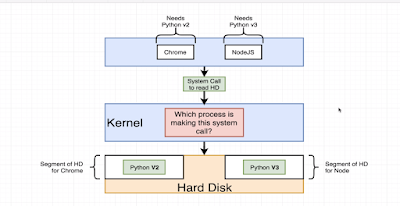
Docker has two components 
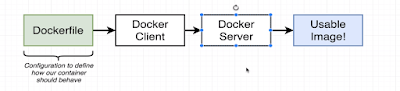
             Docker cli:  is the docker client. tool that we are going to issue command.
             Docker server: Docker Daemon tool that is responsible for creating images, running
             containers etc

What is container ?
  • Two containers do not share their filesystem. no sharing of data between them.
  • Namespaces/segmenting Isolating resources per process or group of process
  • Control groups(cgroups) Limit amount of resources used per process


Life cycle of a container:

It has two steps, create a image and start the container from that image.
  • Create a container:  docker create <image name>
  • Start a container:     docker start -a <container id> // -a option means give me the output
When a container is create and started and if you want to run it again with docker start, you can not override the default startup command.

Image: Single file with all the dependencies and config required to run a program. File system snapshot. very specific set of files. when we run docker, images turns into a container


Docker some basic commands:

docker run = docker create + docker start

$docker create <image name>
$ docker start -a <container id>          
// -a option means give me the output

$docker ps                                          
// to list all the currently running container
$docker ps --all                                   
// list all the container that created, its like history

$docker system prune                         
// delete  all the containers from docker daemon.

$docker logs <container id>                 
// getting all the logs that container generated

$docker stop  <container id> 
// stopping container, sigterm signals to stop and clean up

$docker kill  <container id> 
// sigkill, kill the process right now

$docker rm <image name>

$docker attach <contanierId> 
// helps to get access to container's stdin, stdout, stderr

$docker image ls 
// to see list of all docker images on your system
Execute an additional command in a running container

$docker exec -it <containerid> <command> 
// it parameter allows to input
// get into the container and run command as you can not run command from host computer.

Example:
first command: $docker run redis
second command: $docker exce -it <container-id> redis-cli

How to open terminal/shell inside a container
$docker exec -it <container-id> sh
$docker run -it busybox sh 
// you can open terminal at the time of starting your container.

$docker run -d redis
// -d option for background run , daemon

Creating a Docker File:
  • Specify a base image
  • Run some commands to install additional programs
  • Specify a command to run on container startup
FROM -> RUN -> CMD

The naming convention for a docker file is "Dockerfile"
A sample Dockerfile

#Use a base docker image
FROM node:alpine

#download and install a dependency
WORKDIR /usr/app
COPY ./package.json ./
RUN npm install
COPY ./ ./

#start up command
CMD ["npm", "start"]


Two steps to run a docker file. 

  • Building the Dockerfile to create an image
  • Running the Image to run a container

$docker build . 
// it will output an id
$docker run <build image id>

Building docker image with a name:

$docker build -t <docker id, user name in docker hub>/<name of the image>:latest .
// -t indicates tag or name
$docker run  <docker id, user name in docker hub>/<name of the image>

With docker commit create image from a container:
$docker run -it alpine sh
$apk add --update redis

$docker ps // get id of the container
$docker commit -c 'CMD ["redsi-sever"]' <id container>
$docker run "new container id"

Push docker image to docker hub:
$docker push <tag name of the image>:version

If you run docker in detach mode, you may execute the below command
$docker inspect <image name>


Problem might face working with docker script first time
  • Make sure to use the right base docker image
  • Make sure you saved the file name as Dockerfile
  • When you run docker build command make sure to use . operator at the end of the command
  • Container file system is completely isolated. So make sure to copy your working directory code to docker file system. 
            use 
            WORKDIR /usr/app 
            and COPY ./ ./
  • Once you run web application using docker, you will not direct access to it using the port you assigned. As it is running on its own container. A port mappings needs to be set so that you can access the web application. 
$docker run -p 8080:8080 <imageid>
$docker run -it <docker id>/<image name> sh
//you can look inside the container

What is docker compose?
  • Separate CLI that gets installed along with Docker
  • Used to start up multiple docker containers at the same time
  • Automates some of the long winded arguments we are passing to 'docker run'
docker run <myimage> docker-compose up
docker build .
docker run <myimage>
docker-compose up --build

Launch in background: $docker-compose up -d
// -d for running in background
Stop containers:         $docker-compose down

$docker-compose status
//run this command inside of directory containing docker compose file:
$docker-compose ps
//run this command inside of directory containing docker compose file:

Running docker file with a custom file name:
$docker build -f dockerfile.dev .

How to change source code and reflect the change inside the docker container instead of building docker image every time? Docker volume is an option.

Docker volume: instead of copying put the reference to local machine filesystem and container filesystem

$docker run -p 3000:3000  -v pwd:/app CONTAINER_ID // windows
$docker run -p 3000:3000 -v ${pwd}:/app CONTAINER_ID

Example:
$docker run -p 3000:3000 -v $(pwd):/app <image id>
$docker run -p 3000:3000 -v app/node_modules -v $(pwd):/app CONTAINER_ID
// -v /app/node_modules means don't map with local

Equivalent docker-compose file of the above:

version: '3'
services:
    web:
        build:
            context: .
            dockerfile: Dockerfile.dev
        ports: 
            - "3000:3000"
        volumes: 
            - /app/node_modules
            - .:/app

how to restart if for some error inside the container:

Restart policies:

  • "no" : Never attempt to restart this. Container if it stops or crashes
  • always: if this container stops for any reason always attempt to restart it
  • on-failure: only restart if the container stops with an error code
  • unless-stopped: always restart unless we forcibly stop it.
add in docker-compose.yml under service node, restart : always/"no"/on-failure/unless-stopped

Tuesday, 26 November 2019

Implement PWA Service worker with google WorkBox

What is Workbox?

From google workbox site, Workbox is a library that bakes in a set of best practices and removes the boilerplate every developer writes when working with service workers.
  • Precaching
  • Runtime caching
  • Strategies
  • Request routing
  • Background sync
  • Helpful debugging
  • Greater flexibility and feature set than sw-precache and sw-toolbox
To create service worker with workbox follow the below steps

Step 1:
Create a react app with your preferred tool like create-react-app or npx or yarn

Step 2:
        install workbox cli
        $npm install workbox-cli --global

Step 3:
       Go to the react project directory and then run the below commands

       $npm run build // it will compile and create the build folder

       $workbox wizard

       Then follow the options it asks. ( if you are not sure what to choose pick the default option and            hit enter)

       You will be presented the below options

? What is the root of your web app (i.e. which directory do you deploy)? (Use ar
row keys)
> build/
  public/
  src/
  ──────────────
  Manually enter path

? Which file types would you like to precache? (Press <space> to select, <a> to
toggle all, <i> to invert selection)
>(*) json
 (*) ico
 (*) html
 (*) png
 (*) js
 (*) txt
 (*) css
(Move up and down to reveal more choices)
  
? Where would you like your service worker file to be saved? (build\sw.js)  
? Where would you like to save these configuration options? (workbox-config.js)

Step 4:
       To generate service worker, run

       $workbox generateSW workbox-config.js

Step 5:
create a service worker file in /src dirctory name: workbox-sw.js and add the below contents

importScripts("https://storage.googleapis.com/workbox-cdn/releases/4.3.1/workbox-sw.js");

const precacheManifest = [];


console.log("[Workbox] ######################## Installing ############################")

if (workbox) {
    console.log('[Workbox] Yay! Workbox is loaded 🎉');
} else {
    console.log('[Workbox] Boo! Workbox did not load 😬');
}

console.log("[Workbox] #################################################################")


workbox.precaching.precacheAndRoute(precacheManifest);


Step 6:
Modify the workbox-config.js located in the root directory of the project


module.exports = {
  "globDirectory": "build/",
  "globPatterns": [
    "**/*.{json,ico,html,js,css}"
  ],
  "swDest": "build/sw.js",
  "swSrc": "src/workbox-sw.js",
  "injectionPointRegexp": /(const precacheManifest = )\[\](;)/
};


Step 7:
      Register service worker, edit index.html file in public/ directory and add the below scripts

h
<script>
    console.log('%NODE_ENV%');

    const isProduction = '%NODE_ENV%' === 'production';
    if (isProduction) {
      console.log('This is a production environment :-|');
    } else {
      console.log('This is a development environment o-o');
    }

    if (isProduction && 'serviceWorker' in navigator) {
      navigator.serviceWorker.register('sw.js')
        .then(registration => console.log('[ service workder ] - Service Worker registered'))
        .catch(err => '[ service workder ] - SW registration failed');
    }
  </script>


Step 8:
Modify package.json and add the below script line star-sw


"scripts": {
    "start": "react-scripts start",
    "build": "react-scripts build",
    "test": "react-scripts test",
    "eject": "react-scripts eject",
    "start-sw": "react-scripts build && workbox copyLibraries build/ && workbox injectManifest workbox-config.js"
  }


Step 9:
run the service worker script which will generate and precache and build the project.

$npm run start-sw

Step 10:
run the compiled and generated project ( if you don't have serve installed run command
        $npm  install serve -g )

$serve -s build

Step 11:
Open your project http://localhost:5000, turn off the network and reload the page and see the                magic, it works offline

to see all cached contents go to application tab on your browser,


Additional: 
Add your caching strategy in src/workbox-sw.js , for reference how to add strategy follow the below links

https://developers.google.com/web/tools/workbox/modules/workbox-strategies
https://developers.google.com/web/tools/workbox/guides/common-recipes

 A sample workbox-sw.js with graphql implementation

importScripts("https://storage.googleapis.com/workbox-cdn/releases/4.3.1/workbox-sw.js");
const precacheManifest = [];
console.log("[Workbox] ############## Installing #############################")
if (workbox) {
    console.log('[Workbox] Yay! Workbox is loaded 🎉');
} else {
    console.log('[Workbox] Boo! Workbox did not load 😬');
}
console.log("[Workbox] ########################################################")
workbox.precaching.precacheAndRoute(precacheManifest);

// You might want to use a cache-first strategy for images
workbox.routing.registerRoute(
    /\.(?:png|gif|jpg|jpeg|webp|svg)$/,
    new workbox.strategies.CacheFirst({
        cacheName: IMAGE_CACHE,
        plugins: [
            new workbox.expiration.Plugin({
                maxEntries: 60,
                maxAgeSeconds: 30 * 24 * 60 * 60, // 30 Days
            }),
        ],
    })
);

// Cache the Google Fonts stylesheets with a stale-while-revalidate strategy.
workbox.routing.registerRoute(
    /^https:\/\/fonts\.googleapis\.com/,
    new workbox.strategies.StaleWhileRevalidate({
        cacheName: GOOGLE_FONT_STYLE_CACHE,
    })
);

// Cache the underlying font files with a cache-first strategy for 1 year.
workbox.routing.registerRoute(
    /^https:\/\/fonts\.gstatic\.com/,
    new workbox.strategies.CacheFirst({
        cacheName: GOOGLE_FONT_WEBAPI_CACHE,
        plugins: [
            new workbox.cacheableResponse.Plugin({
                statuses: [0, 200],
            }),
            new workbox.expiration.Plugin({
                maxAgeSeconds: 60 * 60 * 24 * 365,
                maxEntries: 30,
            }),
        ],
    })
);

// broadcast channel to load new updates
self.addEventListener('install', (event) => {
    const updateChannel = new BroadcastChannel('sw-precache-channel');
    updateChannel.postMessage({ promptToReload: true });

    updateChannel.onmessage = (message) => {
        if(message.data.skipWaiting){
            self.skipWaiting();
        }
    };
});

// Workbox with custom handler to use IndexedDB for cache.

workbox.routing.registerRoute(
    new RegExp('/graphql(/)?'),
    async ({ event }) => {
        return staleWhileRevalidate(event);
    },
    'POST'
);

// Return cached response when possible, and fetch new results from server in chnage
// the background and update the cache.
self.addEventListener('fetch', async (event) => {
    if (event.request.method === 'POST') {
        event.respondWith(staleWhileRevalidate(event));
    }
    // TODO: Handles other types of requests.
});

async function staleWhileRevalidate(event) {
    let promise = null;
    let cachedResponse = await getCache(event.request.clone());
    let fetchPromise = fetch(event.request.clone())
        .then((response) => {
            setCache(event.request.clone(), response.clone());
            return response;
        })
        .catch((err) => {
            console.error(err);
        });
    return cachedResponse ? Promise.resolve(cachedResponse) : fetchPromise;
}

async function serializeResponse(response) {
    let serializedHeaders = {};
    for (var entry of response.headers.entries()) {
        serializedHeaders[entry[0]] = entry[1];
    }
    let serialized = {
        headers: serializedHeaders,
        status: response.status,
        statusText: response.statusText
    };
    serialized.body = await response.json();
    return serialized;
}

async function setCache(request, response) {
    var key, data;
    let body = await request.json();
    let id = CryptoJS.MD5(body.query).toString();

    var entry = {
        query: body.query,
        response: await serializeResponse(response),
        timestamp: Date.now()
    };
    idbKeyval.set(id, entry, store);
}

async function getCache(request) {
    let data;
    try {
        let body = await request.json();
        let id = CryptoJS.MD5(body.query).toString();
        data = await idbKeyval.get(id, store);
        if (!data) return null;

        // Check cache max age.
        let cacheControl = request.headers.get('Cache-Control');
        let maxAge = cacheControl ? parseInt(cacheControl.split('=')[1]) : 3600;
        if (Date.now() - data.timestamp > maxAge * 1000) {
            console.log(`Cache expired. Load from API endpoint.`);
            return null;
        }

        console.log(`Load response from cache.`);
        return new Response(JSON.stringify(data.response.body), data.response);
    } catch (err) {
        return null;
    }
}

async function getPostKey(request) {
    let body = await request.json();
    return JSON.stringify(body);
}

Monday, 25 November 2019

React manage different environment variable with .env file


React web application has two values environment variable NODE_ENV, it is either production or development. You can not modify the variable NODE_ENV, this is an international setting to protect the production environment from an accidental development.

  "scripts": {
    "start": "react-scripts start", // the value of NODE_ENV is development
    "build": "react-scripts build", // the value of NODE_ENV is production
...
}


.env: Default.
.env.local: Local overrides. This file is loaded for all environments except test.
.env.development, .env.test, .env.staging, .env.production: Environment-specific settings.
.env.development.local, .env.test.local, .env.production.local: Local overrides of environment-specific settings.

.env file will be use used for runing by defualt
.env.development file will be used for running script npm start
.env.production file will be used for running script npm build

To create different environmental variable and use them in react code create the below files in the root directory of the project

filename: .env
contents:  REACT_APP_PAGE_TITLE = "My React app application"

filename: .env.development
contents:  REACT_APP_MY_API = "https://development-my-api.com/"
  REACT_APP_ENV=dev

filename: .env.staging
contents:  REACT_APP_MY_API = "https://staging-my-api.com/"
  REACT_APP_ENV=staging

filename: .env.production
contents:  REACT_APP_MY_API = "https://prod-my-api.com/"
  REACT_APP_ENV=prod

install the below package:

$ npm install env-cmd --save
or
$ yarn add env-cmd


Modify script in package.json and it should be look like below

"scripts": {
    "start": "react-scripts start", // the value of NODE_ENV is development
    "build": "react-scripts build", // the value of NODE_ENV is production
"build:staging": "env-cmd -f .env.staging react-scripts build", // the value of NODE_ENV is still production
...
}

To test the application if it works, add the below tags in your app.js

<div>
      <h1>{process.env.REACT_APP_PAGE_TITLE}</h1> 
      <small>You are running this application in <b>{process.env.REACT_APP_ENV}</b> mode.</small>
      <p>{process.env.REACT_APP_MY_API}</p>
  </div>


Run application
development:
npm start


Staging:
npm run build:staging // build the application for staging
serve -s build // run the application compiled for staging


production:
npm run build // build the application for production
serve -s build // run the application compiled for production


Tuesday, 14 May 2019

Getting started with react native on Mac

What is React Native?
React Native is an open-source mobile application framework created by Facebook. It is used to develop applications for Android, iOS and UWP by enabling developers to use React along with native platform capabilities. React Native lets you build mobile apps using only JavaScript. It uses the same design as React, letting you compose a rich mobile UI using declarative components.

What is Electrode?
The Platform For Integrating React Native Into Your Apps. Electrode Native is built on top of React Native and other tools such as Yarn and CodePush. Electrode Native does not contain any code modifications to these tools and frameworks. Electrode provides you with the ability to integrate multiple different react-native applications into a single native app.


Installation:
install xcode ( https://developer.apple.com/xcode/)
install homebrew ( if it is not installed)  go to https://brew.sh/ to get instruction
NODE/npm:$ brew install node 
Watchman:$ brew install node watchman
react native:$ npm install -g react-native-cli

Create react native project:
react-native init <project name>

Code Editor:
Atom (https://atom.io/ )
Open code atom code editor: atom .
Debug window: press command + D on simulator
Debugger; statement is equivalent to break point
Visual studio code (https://code.visualstudio.com/)

Configure Editor compiler:
ATOM:
ESLint: ( parses JavaScript code error handler)
install lint globally:$ npm install -g eslint

Install linter-eslint plugin in ATOM code editor, Menu -> Preferences -> Install ( search for linter-eslint )
go to your project directory then run the command to install coding compiler:
       $npm install --save-dev eslint-config-rallycoding
under your project create a file: .eslintrc
and copy the below content and save it.
{
"extends": "rallycoding"
}

VSCODE:
$npm install --save-dev eslint-config-rallycoding
{
"extends": "rallycoding"
}

Running react native: 
IOS: react-native run-ios
Android: react-native run-andriod

Troubleshooting after running the command:

Problem: xcrun: error: unable to find utility "instrument" xcode
Solutions: You need to launch XCode and agree to the terms first. Then go to Preferences > Locations and you'll see a select tag for Command Line Tools. Click this select box and choose the version of XCode you'll be using.
After this you can go back to the command line and run react-native run-ios

Problem: Unable to resolve module “events” React-Native
solutions: npm install events --save

React library:
Axios: Axios is a Javascript library used to make HTTP requests from node.js or XMLHttpRequests from the browser that also supports the ES6 Promise API
npm install --save axios
Flexbox layout

Components some key elements:
props for communication from parent to child
state for component internal record keeping only use in class based component not in functional base component
don't use this.state = , use this.setState method
Class based component and functional based component
Only the 'root' component uses 'Appregistry'
component nesting

React vs react native:
React:
- knows how a component should behave
- knows how to take a bunch of components and make them work together

React-native:
- knows how to take the output from a component and plae it on the screen
- Provides defaults core components ( image text)

Some useful commands:
Clearing metro cache (restarting metro bundler react native):
if npm cache clean --force doesn't work run the below commands
rm -rf $TMPDIR/metro-* && rm -rf $TMPDIR/react-* && rm -rf $TMPDIR/haste-*
watchman watch-del-all

react-native run-android -- --reset-cache
C:\Users<Username>\AppData\Local\Temp and delete metro-cache 

Friday, 25 January 2019

Eclipse : Maven search dependencies doesn't work

Eclipse : Maven search dependencies doesn't work


Eclipse artifact searching depends on repository's index file. It seems the index file is not yet downloaded.

Go to Window -> Preferences -> Maven and check "Download repository index updates on start".
Restart Eclipse and then look at the progress view. An index file should be downloading.


wait until downloading is completely done.

Maven Settings

UPDATE You also need to rebuild your Maven repository index in 'maven repository view'.

In this view , open 'Global Repositories', right-click 'central', check 'Full Index Enable', and then, click 'Rebuild Index' in the same menu.

A index file will be downloaded.

Artifact searching will be ready to use.

Tuesday, 11 December 2018

OpenAPI and Swagger (API First Development)


The Swagger tools, and the OpenAPI format, are an excellent way to document REST API's and even to generate client or server stub libraries to ease implementation. The technology serves two purposes 
                a) standardized documentation for REST API's,
                b) generating code from API documentation in several programming languages.
An OpenAPI file is fairly simple to write, An OpenAPI file allows you to describe your entire API, including:
  • Available endpoints (/users) and operations on each endpoint (GET /users, POST /users)
  • Operation parameters Input and output for each operation
  • Authentication methods   
  • Contact information, license, terms of use and other information.

API specifications can be written in YAML or JSON..

What are they?

OpenAPI = Specification (OAS Open API Specification)

Swagger = Tools for implementing the specification
The development of the specification is fostered by the OpenAPI Initiative, which involves more the 30 organizations from different areas of the tech world — including Microsoft, Google, IBM, and CapitalOne. Smartbear Software, which is the company that leads the development of the Swagger tools, is also a member of the OpenAPI Initiative, helping lead the evolution of the specification.

Swagger tools which can be used at different stages of the API lifecycle

Swagger Editor: Swagger Editor lets you edit OpenAPI specifications in YAML inside your browser and to preview documentations in real time.

Swagger UI: Swagger UI is a collection of HTML, Javascript, and CSS assets that dynamically generate beautiful documentation from an OAS-compliant API.

Swagger Codegen: Allows generation of API client libraries (SDK generation), server stubs and documentation automatically given an OpenAPI Spec.

Swagger Parser: Standalone library for parsing OpenAPI definitions from Java

Swagger Core: Java-related libraries for creating, consuming, and working with OpenAPI definitions

Swagger Inspector (free): API testing tool that lets you validate your APIs & generate OpenAPI definitions from an existing API

SwaggerHub (free and commercial): API design and documentation, built for teams working with OpenAPI.

Eclipse tool to develop swagger:
KaiZen OpenAPI Editor is an Eclipse editor for the industry standard API description language, formerly known as Swagger. It now supports both Swagger-OpenAPI version 2.0 and OpenAPI version 3.0.
Basic Structure of an OpenAPI Specifications file:
Specification documentation:
All keywords are case sensitives.
  • -          Metadata
  • -          Servers
  • -          Path
  • -          Parameters
  • -          Request body
  • -          Responses
  • -          Input and output models
  • -          Authentication

Example:

Generating server-side code:

Swagger-codegen:
                Download the code and build jar or download jar directly from below url


 java -jar swagger-codegen-cli-3.0.0.jar generate -i api\openapi.yaml -l spring --library spring-mvc -o api\mvc -c api\option.json

JHipster codegen:

Generate a JHipster application with OpenApi Enable. You can configure api and model package

<configuration>
                <inputSpec>${project.basedir}/src/main/resources/swagger/api.yml</inputSpec>
                <generatorName>spring</generatorName>
                <apiPackage>com.first.services.web.rest</apiPackage>
                <modelPackage>com.first.services.web.model</modelPackage>
                <supportingFilesToGenerate>ApiUtil.java</supportingFilesToGenerate>
                <configOptions>
                                <delegatePattern>true</delegatePattern>
                </configOptions>
</configuration>

Write your specification using a tool such as swagger-editor, put it in src/main/resources/swagger/api.yml, then run

./mvnw generate-sources
or
./gradlew openApiGenerate

You can move your generated classes to your src/main/java or keep them in target directory ( target directory classes are in classpath)

After moving the classes to src/main/java rename ApiUtil class to a meaningful name with keeping the reference.

Then implement the “Delegate” interfaces generated in ${buildDirectory}/generated-sources/openapi/src/main/java/${package}/web/api/ with @Service classes.

Change the @RequestMapping("/api") annotation located in com.first.services.web.rest

Create JDL file to create entity object
jhipster import-jdl {fileName}

Map the delegate interface implementations to entity object.


Wednesday, 28 November 2018

Apache CXF creating rest client authentication and customize header

There are two ways you can authenticate rest client.

Setting header authorization:

WebClient client = WebClient.create(url);
String authorizationHeader = "Basic " + org.apache.cxf.common.util.Base64Utility
                                    .encode((username + ":" +  password)).getBytes());

                    client.header("Authorization", authorizationHeader);


Pass user and password when you create your rest client.


WebClient client = WebClient.create(url, username, password, null);


If you want to pass client_id or any other parameter just use

client.header("CLIENT_ID",{your_id})

Settings media type:

client.type(MediaType.APPLICATION_JSON_TYPE)

client.accept(MediaType.APPLICATION_JSON_TYPE)

Then follow the url to get the response from server.

https://problemslicer.blogspot.com/2018/09/no-message-body-reader-has-been-found.html